

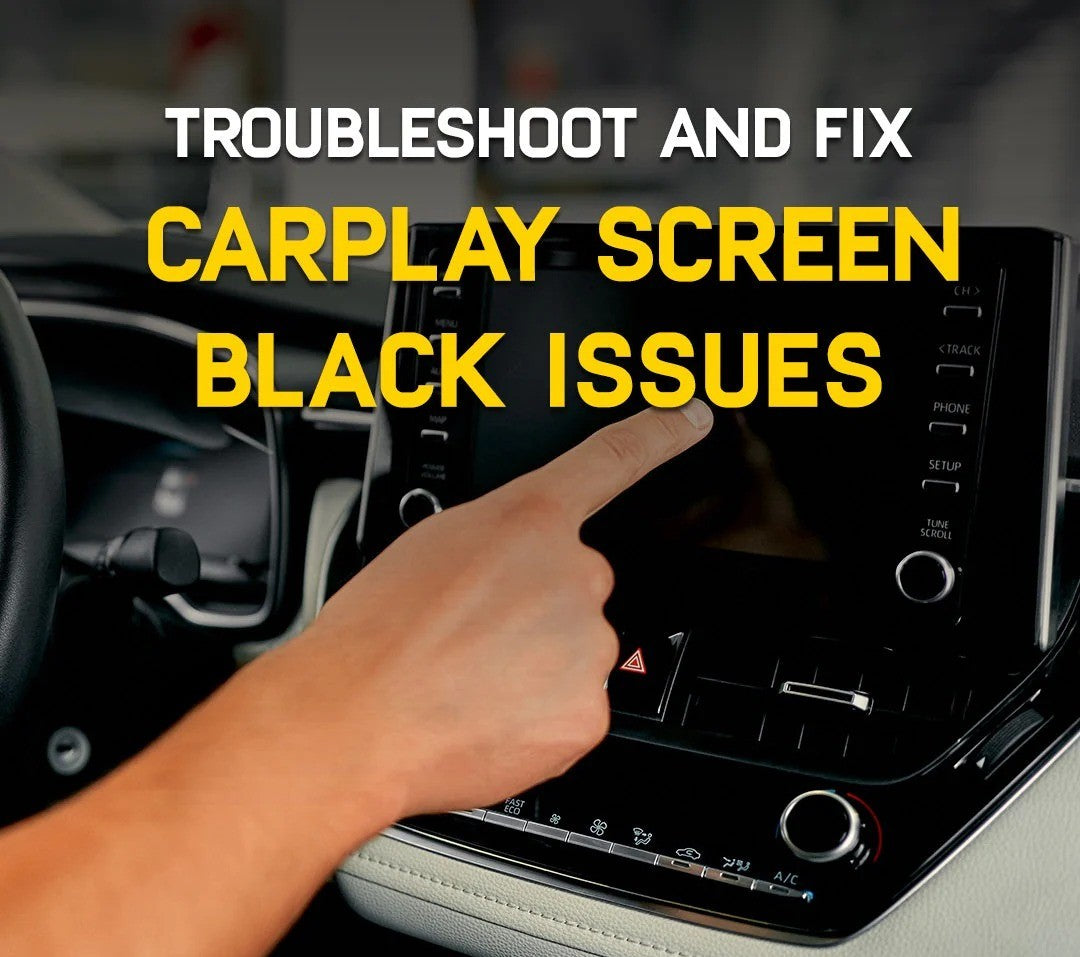
Apple's latest iOS 27 update brings several improvements to iPhone users, but like every major release, it has also introduced a few unexpected issues. One of the most commonly reported problems is Apple CarPlay displaying a black screen, even though the iPhone appears to connect successfully.
If your CarPlay screen stays black after updating to iOS 27, don't panic. In most cases, the issue can be resolved without visiting the dealership or replacing any hardware.
Why Does CarPlay Show a Black Screen?
A black screen doesn't always mean something is broken. In many cases, the iPhone and your vehicle are still communicating, but the CarPlay interface fails to launch correctly due to a software bug, a connection issue, or outdated infotainment firmware.
Users have reported several variations of the problem, including:
- Black screen immediately after connecting
- CarPlay launches but freezes on a black display
- Touchscreen responds, but nothing is visible
- Audio continues playing while the screen remains black
- Wireless CarPlay fails while wired CarPlay still works
1. Disconnect and Reconnect Your iPhone
The simplest solution is often the most effective.
Disconnect your iPhone from the vehicle, wait around 30 seconds, then reconnect it. If you're using Wireless CarPlay, disable Bluetooth and Wi-Fi for a few seconds before reconnecting.
This forces both the phone and the infotainment system to establish a new CarPlay session.
2. Restart Your iPhone
Major iOS updates can leave background services running incorrectly until the device is restarted.
A full reboot often resolves temporary CarPlay glitches introduced after updating to iOS 27.
3. Restart Your Vehicle's Infotainment System
Many factory infotainment systems can be rebooted without turning off the vehicle.
Depending on your car, simply press and hold the power or volume button for 10–20 seconds until the system restarts.
This clears temporary software errors that may prevent CarPlay from loading properly.
4. Forget and Reconnect CarPlay
If the problem started immediately after installing iOS 27, remove your vehicle from CarPlay and pair it again.
On your iPhone:
Settings → General → CarPlay
Select your vehicle and choose Forget This Car.
Reconnect your iPhone and complete the pairing process again.
5. Check for an Infotainment Software Update
Many manufacturers release infotainment updates after major iOS releases to improve compatibility with newer iPhone software.
If your vehicle hasn't been updated recently, check with your manufacturer or dealership for available software updates.
6. Try a Different USB Cable
If you're using wired CarPlay, a damaged or low-quality cable can cause the display to remain black while charging continues normally.
Use:
- An original Apple cable, or
- A high-quality MFi-certified USB cable.
Avoid cheap aftermarket cables whenever possible.
7. Disable VPN and Screen Recording Apps
Some VPNs, security software, and screen-recording applications can interfere with CarPlay.
Temporarily disable these apps and reconnect your iPhone to see if the issue disappears.
8. Update to the Latest iOS 27 Version
Apple frequently releases bug-fix updates shortly after major iOS launches.
If you're running an early build of iOS 27, installing the latest update may resolve the issue completely.
Does the Problem Affect Wireless CarPlay More?
Yes.
Early reports suggest the issue appears more frequently on Wireless CarPlay than on wired connections. Because wireless operation depends on both Bluetooth and Wi-Fi, any software bug affecting these services can prevent the CarPlay interface from loading correctly.
Fortunately, most cases can be resolved by repairing the wireless connection or restarting both the phone and the infotainment system.
What If Your Vehicle Doesn't Support Apple CarPlay?
If your vehicle doesn't include Apple CarPlay from the factory, or you're experiencing ongoing compatibility issues with an outdated infotainment system, upgrading may be the best long-term solution.
At TheCarPlayer, we offer vehicle-specific plug-and-play Apple CarPlay retrofit modules that integrate seamlessly with your factory infotainment system.
Our modules provide:
- Wireless Apple CarPlay
- Wireless Android Auto
- Factory touchscreen compatibility
- Steering wheel control support
- Factory camera compatibility
- Simple plug-and-play installation with no wire cutting
Unlike replacing the entire head unit, our retrofit kits preserve your vehicle's original appearance and functionality while adding the latest smartphone connectivity features.
Final Thoughts
A black screen after updating to iOS 27 is frustrating, but in most cases it's caused by a temporary software or connection issue rather than a hardware failure.
Restarting your iPhone, rebooting your infotainment system, reconnecting CarPlay, and ensuring both your iPhone and your vehicle are fully updated will resolve the problem for most users.
If your vehicle still doesn't support Apple CarPlay, a dedicated retrofit module is an easy way to enjoy the latest CarPlay features without replacing your factory infotainment system.
Share:
Google Maps Finally Adds a Speedometer to Android Auto
WhatsApp Finally Gets an Official App for Android Auto and Apple CarPlay