

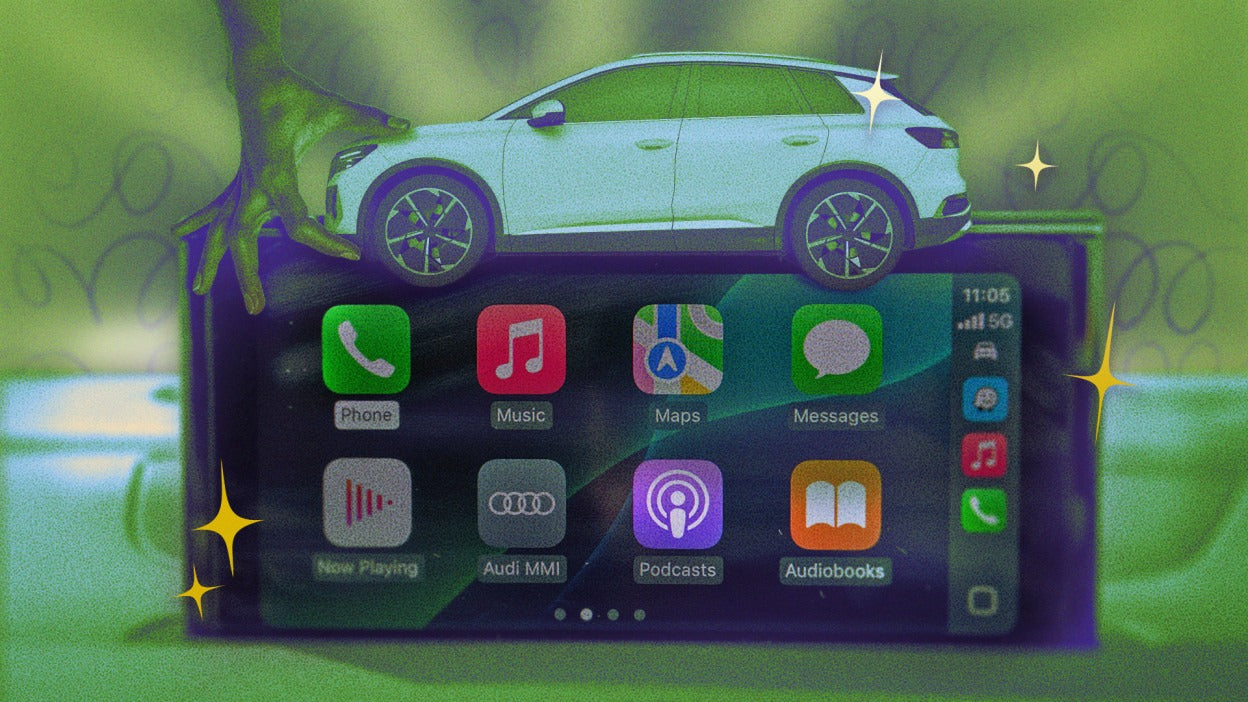
Apple CarPlay has completely changed the way we interact with our cars. From navigation and music streaming to messaging and voice commands, CarPlay makes driving smarter, safer, and far more convenient.
But most drivers only use a small percentage of what Apple CarPlay can actually do.
Whether you use a factory-installed system or an aftermarket CarPlay module from TheCarPlayer.com, these hidden CarPlay tips and tricks can dramatically improve your daily driving experience.
Here are 10 Apple CarPlay hacks every user should know in 2026.
1. Customize Your CarPlay Home Screen
One of the easiest ways to improve CarPlay is organizing your apps properly.
Most drivers leave the default setup untouched, which often means scrolling through unnecessary apps while driving.
Instead, move your most-used apps like:
- Google Maps
- Waze
- Spotify
- Apple Music
- Phone
to the first page for quicker access.
How to Customize CarPlay Apps
On your iPhone:
- Open Settings
- Go to General > CarPlay
- Select your vehicle
- Tap Customize
- Drag apps into your preferred order
- Remove apps you never use
Changes appear instantly on your CarPlay screen.
You can also:
- switch between Light and Dark Mode,
- change wallpapers,
- and customize app visibility.
2. Use SharePlay or Spotify Jam for Road Trips
Road trips become much better when everyone can control the music.
With:
- Apple Music SharePlay
- Spotify Jam
passengers can add songs to the queue directly from their own phones.
This eliminates the constant:
“Can you play this song?”
problem during long drives.
How to Start Spotify Jam in CarPlay
- Open Spotify
- Tap the device icon
- Select Start a Jam
- Share the QR code
Passengers can instantly join and add music.
3. Add Widgets to CarPlay
Newer iOS versions introduced CarPlay widgets, giving drivers quick access to information without opening apps.
Useful widgets include:
- Weather
- Calendar
- Reminders
- Sports scores
- Battery status
- Smart Home controls
How to Add CarPlay Widgets
On your iPhone:
- Open Settings
- Go to General > CarPlay
- Select your car
- Tap Widgets
- Add or rearrange widgets
Widgets make CarPlay feel much more modern and personalized.
4. Enable Hands-Free Voice Control
Voice control is one of the most underrated CarPlay features.
Instead of tapping the screen while driving, you can:
- open apps,
- send messages,
- control music,
- navigate,
- and manage calls completely hands-free.
This improves both:
- safety,
- and convenience.
Popular CarPlay Voice Commands
Try saying:
- “Open Spotify”
- “Navigate to home”
- “Play my driving playlist”
- “Send a message to John”
- “Call Mom”
You can enable Voice Control through:
Settings > Accessibility > Voice Control
5. Let Siri Read Your Messages Automatically
CarPlay can automatically read incoming messages aloud.
This feature works with:
- iMessage
- Telegram
- supported third-party apps
Instead of checking your phone, Siri reads notifications through your car speakers.
Enable Announce Notifications
On your iPhone:
- Open Settings
- Go to Notifications
- Tap Announce Notifications
- Enable CarPlay
You can also choose which apps Siri is allowed to announce.
6. Pin Your Favorite Playlists in Apple Music
If you constantly search for the same playlists while driving, this feature saves time.
Apple Music now allows users to pin:
- playlists,
- albums,
- artists,
- and songs
directly to the top of the library.
That means faster access inside CarPlay.
How to Pin Music in Apple Music
- Open Apple Music
- Press and hold a playlist or album
- Tap Pin
Pinned content appears instantly in CarPlay.
7. Stop CarPlay From Autoplaying Music
One of the most annoying CarPlay behaviors is autoplay.
Sometimes your iPhone connects and immediately starts playing:
- random music,
- podcasts,
- or videos.
You can stop this using Apple Shortcuts.
Disable CarPlay Autoplay
- Open the Shortcuts app
- Tap Automation
- Create a new automation for CarPlay Connected
- Add the Pause Playback action
Now your music stays paused until you choose what to play.
8. Create a Custom Welcome Sound for CarPlay
Want your car to feel even more personalized?
You can create a custom startup sound when CarPlay connects.
Some people use:
- favorite songs,
- engine sounds,
- funny voice clips,
- or custom greetings.
How to Set a CarPlay Welcome Sound
Using the Shortcuts app:
- Create a CarPlay automation
- Add a saved audio file
- Add the Play Sound action
- Save the shortcut
Now every drive starts with your own custom intro.
9. Use Driving Focus Mode
Driving Focus helps reduce distractions while driving.
When enabled, it can:
- silence notifications,
- auto-reply to messages,
- limit distractions,
- and reduce interruptions.
Set Up Driving Focus
- Open Settings
- Go to Focus
- Select Driving
- Customize allowed contacts and apps
You can configure it to activate automatically whenever CarPlay connects.
This is especially useful for commuters and long-distance drivers.
10. Upgrade to Wireless Apple CarPlay
Still plugging your iPhone into your car every time you drive?
Wireless Apple CarPlay is one of the best upgrades you can make.
Benefits include:
- automatic connection,
- cleaner interior,
- easier daily use,
- faster access to navigation and music.
At TheCarPlayer.com, we offer premium OEM-style wireless Apple CarPlay modules for vehicles including:
- BMW
- Audi
- Porsche
- Mercedes-Benz
- Bentley
- Ferrari
- Jaguar
- Land Rover
- Lexus
- Volkswagen
- Alfa Romeo
Unlike cheap universal adapters, our systems are designed for factory-style integration and stable performance.
Many vehicles can be upgraded without replacing the original screen.
Final Thoughts
Apple CarPlay has evolved far beyond simple phone mirroring.
With the right setup, you can transform your vehicle into a smarter, safer, and more connected driving experience.
From hidden voice controls and widgets to wireless upgrades and automation shortcuts, these CarPlay hacks help you get the absolute most out of your system.
If you're looking to upgrade your vehicle with premium wireless Apple CarPlay integration, explore the latest solutions at TheCarPlayer.com.
Share:
CarPlay Music Apps Showing Wrong Songs? It’s Not Just Spotify
How to Install Apple CarPlay in a Peugeot 5008