

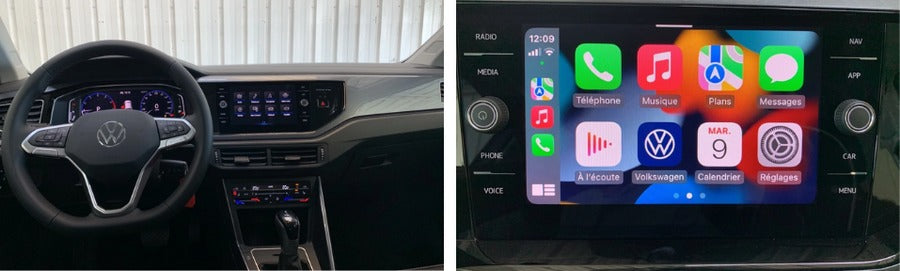
The Volkswagen Taigo is a modern, compact SUV with a sporty coupe design and a strong focus on digital connectivity. One of its most important features is Apple CarPlay, which allows you to seamlessly integrate your iPhone with the vehicle’s infotainment system.
If you’ve just taken delivery of your Taigo—or want to make sure you’re using CarPlay correctly—this guide explains how to connect, configure, and optimize Apple CarPlay in your Volkswagen Taigo, whether you prefer a wireless connection or a USB cable.
At TheCarPlayer.com, we specialize in OEM-style CarPlay solutions and in-car connectivity, so this guide focuses on real-world usability, reliability, and best practices.
What You’ll Learn in This Guide
-
How to connect Apple CarPlay to your Volkswagen Taigo
-
The difference between wireless and wired CarPlay
-
How to optimize CarPlay for daily driving
-
Common issues and how to fix them
-
What to do if your Volkswagen does not support CarPlay natively
Why Use Apple CarPlay in Your Volkswagen Taigo?
Apple CarPlay is more than just screen mirroring. It is a driver-focused interface designed to reduce distractions while keeping you connected.
Key benefits include:
-
Safer driving with Siri voice control and steering wheel integration
-
Real-time navigation using Apple Maps, Google Maps, or Waze
-
Music and media access via Spotify, Apple Music, podcasts, and audiobooks
-
Factory look and feel, fully integrated with the original VW infotainment system
With CarPlay enabled, your Taigo’s screen becomes an intuitive command center—no phone mounts, no distractions, and no compromises.
Method 1: Wireless Apple CarPlay (Wireless App-Connect)
Depending on the trim level and model year, the Volkswagen Taigo supports wireless App-Connect, allowing Apple CarPlay to work without any cable.
How to Set Up Wireless CarPlay (First-Time Pairing)
-
Enable Bluetooth and Wi-Fi on your iPhone
-
Turn on the ignition or start the vehicle
-
On the Taigo’s screen, tap “App-Connect”
-
Select “Devices” or “Manage mobile devices”
-
On your iPhone, go to Settings → General → CarPlay → Available Cars
-
Select Volkswagen Taigo
-
Confirm the pairing code on both screens
-
Allow wireless CarPlay when prompted
Once paired, CarPlay will connect automatically every time you enter the vehicle. Your iPhone can remain in your pocket or bag.
Wireless CarPlay is the most convenient option, especially for short daily trips.
Method 2: Wired Apple CarPlay (USB-C Connection)
If you prefer maximum stability or need to charge your phone during longer drives, a wired connection is equally effective.
How to Use Wired CarPlay in the Taigo
-
Use a USB-C cable (or USB-C to Lightning)
-
Plug the cable into the USB-C port below the climate controls
-
Connect your iPhone and unlock it
-
When prompted, allow CarPlay access
-
Tap the CarPlay icon on the infotainment screen
Wired CarPlay offers:
-
Continuous charging
-
Extremely stable connection
-
Ideal performance for long navigation sessions
How to Get the Most Out of CarPlay in Your Taigo
Use Siri for True Hands-Free Control
Press and hold the voice control button on the steering wheel to activate Siri.
Examples:
-
“Hey Siri, navigate to the nearest fuel station”
-
“Hey Siri, play my driving playlist”
-
“Hey Siri, send a message saying I’ll arrive in 10 minutes”
This minimizes distractions and keeps your focus on the road.
Customize the CarPlay Dashboard
You can rearrange apps directly from your iPhone:
Settings → General → CarPlay → Volkswagen Taigo → Customize
Remove unused apps and keep navigation, music, and calls front and center.
CarPlay Not Working? Quick Troubleshooting
If Apple CarPlay doesn’t connect or behaves inconsistently, check the following:
-
Cable quality – Use an Apple-certified cable for wired CarPlay
-
Siri enabled – CarPlay requires Siri to be active
-
Screen Time restrictions – Ensure CarPlay is not blocked
-
System restart – Hold the infotainment power button for 10 seconds
Most CarPlay issues are caused by cable quality, permissions, or temporary software glitches.
What If Your Volkswagen Doesn’t Support CarPlay?
Not all Volkswagen models or trim levels include Apple CarPlay from the factory. If your vehicle lacks App-Connect or CarPlay support, a dedicated CarPlay retrofit module can enable full Apple CarPlay while keeping the original screen and controls.
At TheCarPlayer.com, we offer:
-
Vehicle-specific Apple CarPlay retrofit modules
-
OEM-style integration
-
Wireless and wired CarPlay support
-
Full compatibility with steering wheel controls and factory systems
Conclusion: A Smarter, Safer Volkswagen Taigo
Using Apple CarPlay in your Volkswagen Taigo significantly improves comfort, safety, and daily usability. Whether you choose wireless convenience or wired reliability, CarPlay turns your infotainment system into a modern, intuitive interface designed for real driving.
If your Volkswagen does not support CarPlay natively—or if you want to upgrade an older model—explore our Volkswagen Apple CarPlay solutions at TheCarPlayer.com and bring modern connectivity to your dashboard.
Share:
How to Install Apple CarPlay in a Ford Explorer (2011–2016) with SYNC 2
Ford Confirms It Won’t Abandon Apple CarPlay — And Its Strategy Makes Perfect Sense