

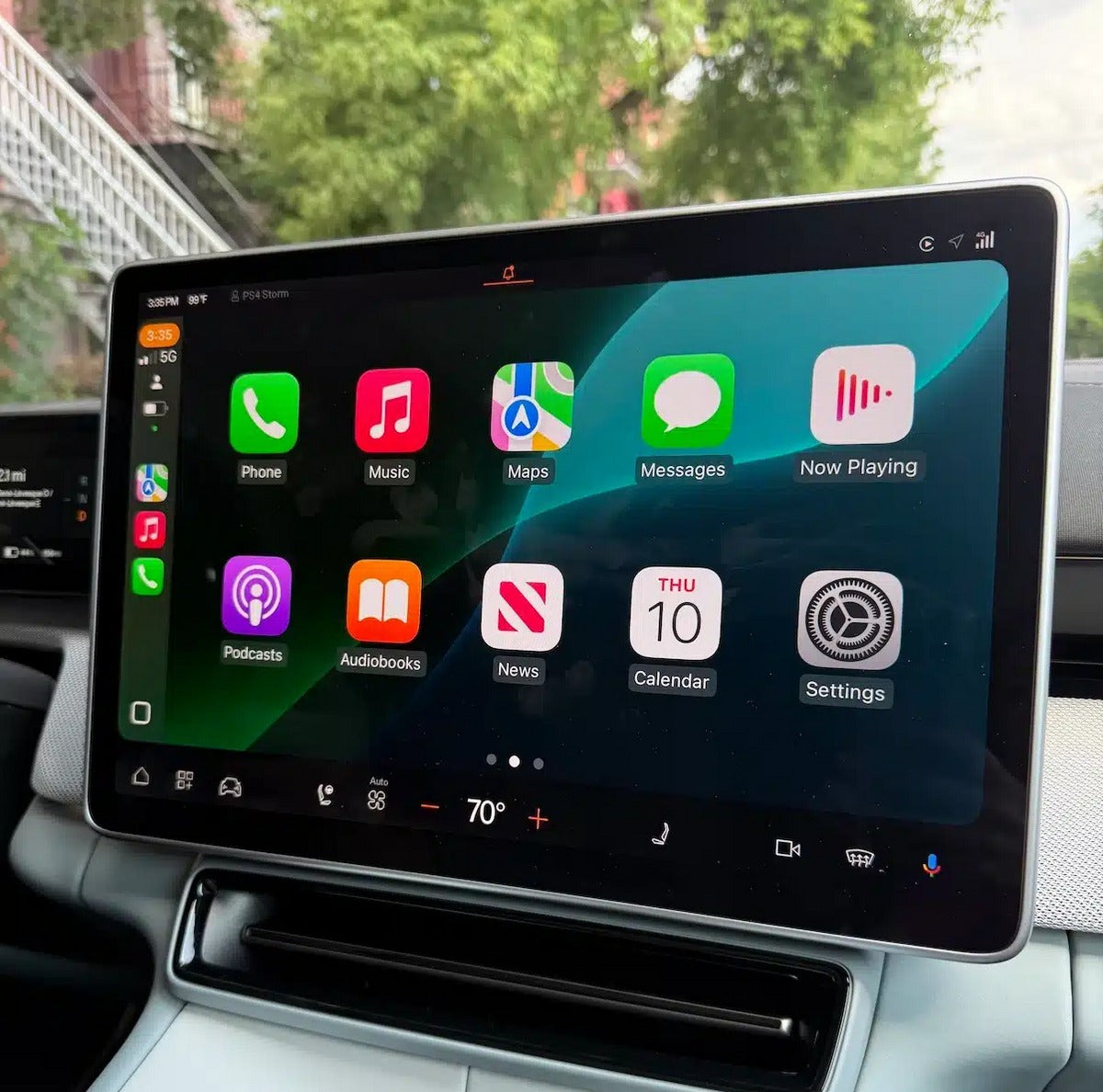
The Polestar 4 is one of the most forward-thinking electric SUVs on the market—Scandinavian design, coupe-style aerodynamics, advanced Google-based infotainment, and yes, the famous “no rear window” concept. But for many drivers who rely on Apple’s ecosystem, the real question is simple:
How do I use Apple CarPlay in the Polestar 4, and how do I set it up correctly?
Although the Polestar 4 comes with a powerful native Google interface, thousands of drivers prefer Apple CarPlay for navigation, music, messages, and daily convenience. In this guide, TheCarPlayer.com walks you through everything you need to know to integrate your iPhone seamlessly with your Polestar 4.
Why Apple CarPlay Integration Matters
Your car should feel like an extension of your digital life—not a separate system you need to adapt to. Apple CarPlay allows your Polestar 4 to display your favorite apps directly on the large center screen, ensuring:
-
Safer hands-free communication
-
Familiar apps like Apple Maps, Waze, WhatsApp, and Spotify
-
Instant voice control via Siri
-
Effortless switching between car functions and iPhone apps
CarPlay ensures that when you sit in your Polestar 4, everything feels familiar and intuitive.
Step 1: Prepare Your iPhone and Your Polestar 4
Before connecting Apple CarPlay, make sure both your car and your iPhone are updated.
1. Update your iPhone
Go to:
Settings → General → Software Update
Install the latest iOS version to avoid connectivity issues.
2. Check your Polestar 4 software
Polestar releases Over-the-Air (OTA) updates frequently. Make sure your infotainment system is current.
3. Enable Siri
CarPlay relies heavily on voice commands, so ensure Siri is enabled on your iPhone.
Step 2: Connect Apple CarPlay Wirelessly (Recommended)
The Polestar 4 fully supports wireless Apple CarPlay, which makes pairing extremely easy.
How to connect:
-
Turn on Bluetooth and Wi-Fi on your iPhone.
-
On the Polestar screen, open the Phone or Connectivity menu.
-
Select Add New Device.
-
Choose Polestar 4 from your iPhone’s Bluetooth list.
-
Verify the pairing code appears correctly on both screens.
-
Confirm, and then tap Use CarPlay on your iPhone.
Your Polestar 4 will automatically launch CarPlay every time you enter the car.
Step 3: Explore the CarPlay Interface
Once connected, the familiar Apple CarPlay interface appears on the Polestar’s large portrait display.
You’ll see:
-
CarPlay home screen with your apps
-
Multitasking dashboard with maps + audio
-
Quick return button to Polestar’s native system
Polestar’s layout and screen size make CarPlay particularly clean and easy to navigate.
What If You Prefer Wired CarPlay?

Even though wireless CarPlay works great, some users prefer a cable for faster charging or maximum stability.
The Polestar 4 supports wired CarPlay through the USB-C ports located in the center console.
Just plug in your Lightning-to-USB-C or USB-C-to-USB-C cable and CarPlay will launch instantly.
If you ever experience wireless instability, a cable is a reliable fallback.
Pro Tips to Improve Your CarPlay Experience
1. Customize Your CarPlay Dashboard
On your iPhone:
Settings → General → CarPlay → Polestar 4 → Customize
Here you can rearrange icons, hide unused apps, or place your essentials (Maps, Spotify, Messages) front and center.
2. Use Siri from the Steering Wheel
Press and hold the voice button on the steering wheel to activate Siri instantly.
This is the safest way to handle messages, music, and navigation while driving.
3. Use Google + Apple Together
Since Polestar runs Android Automotive natively, both assistants work simultaneously.
While using Apple CarPlay, you can still say:
“Hey Google, set the temperature to 22 degrees.”
This gives you the best of both ecosystems at once.
Want Even Better CarPlay Performance? Explore Aftermarket Options
If your other vehicle doesn’t support CarPlay, or if you want a more stable wireless experience in an older car, TheCarPlayer.com offers:
-
Wireless CarPlay adapters
-
OEM-style Apple CarPlay retrofit modules
-
CANBUS solutions for advanced compatibility
These upgrades provide fast, stable, factory-style CarPlay—even in vehicles that were never equipped with it.
Browse our full collection here:
TheCarPlayer.com – Apple CarPlay Upgrade Modules
Conclusion: Seamless Technology for a Better Drive
The Polestar 4 represents the future of electric mobility, and Apple CarPlay completes the experience by bringing your digital world into the vehicle in a clean, intuitive way. Once configured, CarPlay becomes an essential part of your daily driving routine.
Take a few minutes to set it up properly, and enjoy a smooth, connected, and intelligent driving experience every time you step into your Polestar 4.
Share:
Apple CarPlay Problems with the iPhone 17 Pro? A Fix Is Finally on the Way
Google Maps Rival Reverses Course: Sygic Brings CarPlay and Android Auto Back to Lifetime Users