

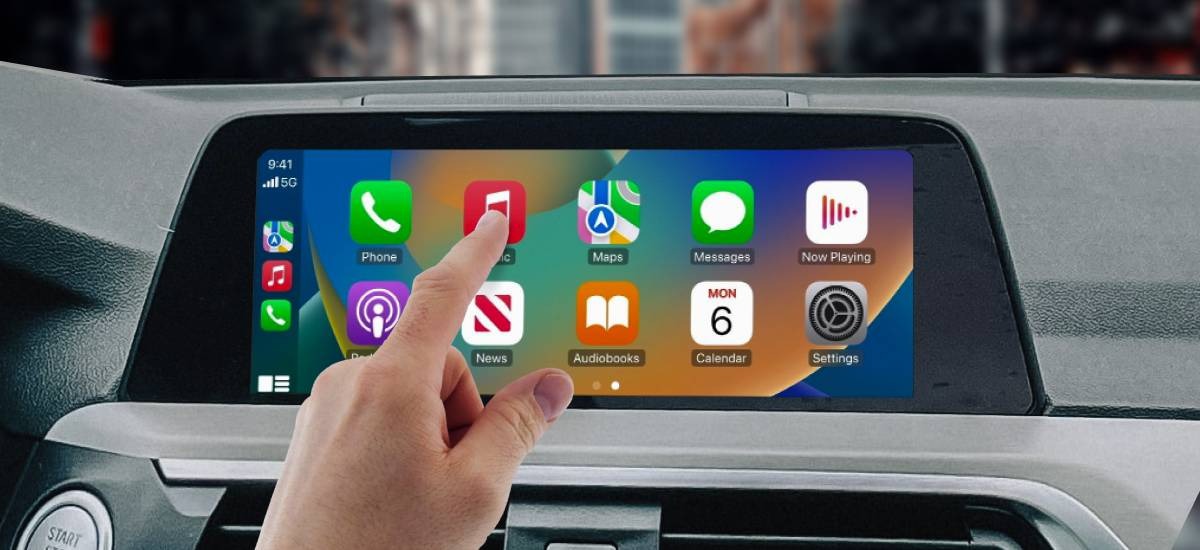
If you’re reading this, chances are you’ve run into a frustrating problem: your touchscreen works perfectly in your car’s OEM menu, but as soon as you switch to Apple CarPlay, touches don’t register. You’re not alone—this is a surprisingly common issue among CarPlay users. In this guide, we’ll explain why this happens and how to fix it, step by step.
Why Touch Works in OEM but Not in CarPlay
When your touchscreen works in the original (OEM) system, it means the hardware is fine. The problem is usually software-related. CarPlay essentially “overlays” its interface onto your OEM system, which can lead to touch responsiveness issues if:
-
CarPlay isn’t fully calibrated for your specific car model.
-
A third-party CarPlay module (like those from thecarplayer.com) isn’t configured correctly.
-
iOS updates introduce temporary touch compatibility problems.
-
OEM system settings conflict with CarPlay input.
This is why many drivers are puzzled: everything seems normal in the factory menu, but CarPlay simply doesn’t respond.
Common Scenarios
-
After installing a wireless CarPlay module: Touch input may lag or not register at all.
-
Following an iOS update: Some versions of iOS change the way CarPlay communicates with touchscreen drivers.
-
Using older OEM screens: Older displays sometimes need recalibration to work with CarPlay.
Step-by-Step Fixes
1. Check CarPlay Module Installation
If you installed a CarPlay module (wired or wireless) from thecarplayer.com:
-
Make sure the module is fully seated.
-
Reboot your car system after installation.
-
Confirm the module firmware is up-to-date. Outdated firmware can prevent touch from registering.
2. Recalibrate the Touchscreen
Some cars allow you to recalibrate the screen via the OEM menu:
-
Go to Settings → Display → Touchscreen Calibration.
-
Follow the on-screen instructions.
-
Test CarPlay again.
3. Reset CarPlay Settings
iOS allows you to reset CarPlay connections:
-
Open Settings → General → CarPlay on your iPhone.
-
Select your car and tap Forget This Car.
-
Reconnect via USB or wireless.
-
This clears potential software conflicts.
4. Check for iOS Updates
Apple frequently releases updates that fix CarPlay touch issues:
-
Go to Settings → General → Software Update.
-
Install the latest version of iOS.
-
Test CarPlay again.
5. Update Module Firmware
For aftermarket CarPlay modules:
-
Visit thecarplayer.com and check your module’s firmware version.
-
Follow our guide to update it, as newer firmware improves touch compatibility and stability.
Bonus Tips for Smooth CarPlay Touch
-
Use Apple-certified cables for wired CarPlay. Low-quality cables can cause intermittent touch issues.
-
Restart your iPhone regularly to clear temporary glitches.
-
Avoid interference from other apps on the OEM system when using CarPlay.
When to Contact Support
If touch still doesn’t work in CarPlay after trying these steps, it’s likely a module-specific issue or a compatibility problem with your car model. Contact TheCarPlayer support with your module type, car model, and iOS version—they can help troubleshoot or provide a firmware update.
Conclusion
A touchscreen that works in the OEM menu but not in CarPlay is almost always a software or module configuration issue, not a hardware fault. By recalibrating your screen, updating iOS and module firmware, and resetting CarPlay connections, most users restore full functionality.
At thecarplayer.com, we specialize in Apple CarPlay modules designed to work seamlessly with your car’s touchscreen, so you can enjoy a flawless CarPlay experience without touch issues.
Share:
Why Cheap Wireless CarPlay Adapters Die After 6–12 Months
CarPlay Ultra Is Expanding — But Most Drivers Still Can’t Get It (Here’s What Actually Matters)