

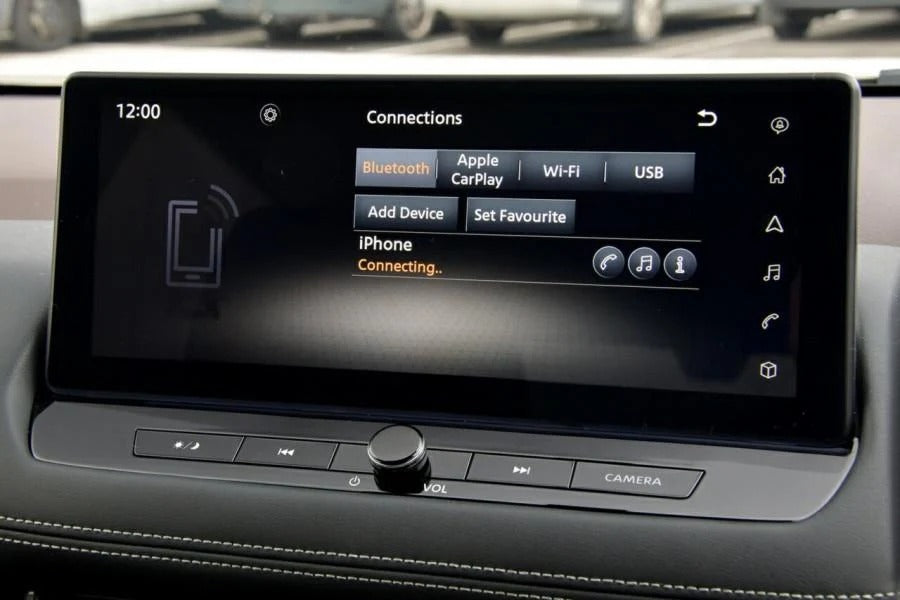
If Apple CarPlay suddenly stops connecting wirelessly, the problem is usually related to Bluetooth, Wi-Fi, a corrupted pairing, another iPhone taking priority, or an issue with the vehicle's infotainment system.
The good news is that most wireless CarPlay connection problems can be fixed without replacing any hardware. Before assuming that something is broken, there are several simple checks worth going through.
In this guide, we'll look at the most common reasons Wireless CarPlay won't connect and what you can do to get it working again.
Does Wireless CarPlay Need Bluetooth and Wi-Fi?
Yes. Wireless CarPlay uses Bluetooth and Wi-Fi together, but they have different roles in establishing and maintaining the connection.
Bluetooth is used during the initial discovery and pairing process, while the Wi-Fi connection handles the higher-bandwidth communication required for CarPlay.
This means that having Bluetooth enabled alone isn't enough. Both Bluetooth and Wi-Fi need to be available for Wireless CarPlay to work properly.
If your iPhone is nearby but the vehicle doesn't connect automatically, start with these basic checks.
1. Check Bluetooth and Wi-Fi on Your iPhone
This is one of the first things to check when Wireless CarPlay stops working.
On your iPhone, go to:
Settings → Bluetooth
Make sure Bluetooth is enabled.
Then check:
Settings → Wi-Fi
Make sure Wi-Fi is also enabled.
It's also worth checking that Airplane Mode is disabled. If you've recently changed your connectivity settings, restarting Bluetooth and Wi-Fi can sometimes be enough to restore the connection.
If you're using Low Power Mode, you can also temporarily disable it while troubleshooting.
2. Check Your CarPlay Settings
If Bluetooth and Wi-Fi are enabled but your iPhone still doesn't connect, check whether your vehicle is correctly registered for CarPlay.
On your iPhone, go to:
Settings → General → CarPlay
Select your vehicle if it appears in the list.
If the vehicle is listed but the connection isn't working correctly, you can remove the existing CarPlay profile and set it up again.
Tap the vehicle and select Forget This Car. Then restart the pairing process from the beginning.
This can resolve connection problems caused by a corrupted or outdated CarPlay profile.
3. Remove Old or Unused iPhones
This is particularly important if multiple people use the same vehicle.
Many infotainment systems can store several phones or CarPlay profiles. If another iPhone is already registered and nearby, the vehicle may attempt to connect to that device instead of yours.
Check your vehicle's Bluetooth and CarPlay device list and remove phones that are no longer used.
If several family members use the car, make sure the correct iPhone is selected as the preferred or primary device where the vehicle supports this option.
4. Restart Your iPhone and Infotainment System
It sounds simple, but restarting both devices can solve temporary connection problems.
Turn your iPhone off and back on, then restart the vehicle's infotainment system if your car allows you to do so.
You can also try switching Bluetooth and Wi-Fi off and back on before attempting to connect again.
If Wireless CarPlay worked normally until recently, this is one of the first troubleshooting steps worth trying.
5. Check for iOS and Infotainment Updates
Wireless CarPlay relies on both your iPhone and the vehicle's infotainment system.
An iOS update can sometimes introduce compatibility issues, while outdated vehicle software can also cause connection problems.
Make sure your iPhone is running a current version of iOS. It's also worth checking whether your vehicle manufacturer offers an update for the infotainment system.
If the problem started immediately after an iOS or vehicle software update, this information can be particularly useful when diagnosing the issue.
6. Make Sure Your Vehicle Actually Supports Wireless CarPlay
This is an important distinction.
Some vehicles support wired CarPlay only, while others support both wired and wireless CarPlay.
If your vehicle only supports wired CarPlay, your iPhone will not connect wirelessly simply by turning on Bluetooth and Wi-Fi.
In this situation, a wireless CarPlay adapter can convert a compatible factory-wired CarPlay system into Wireless CarPlay.
When the Problem Is the Vehicle's Wireless System
If you've checked the iPhone settings, removed old pairings, restarted everything, and confirmed that Wireless CarPlay is supported, the problem may be related to the vehicle itself.
Older infotainment systems can sometimes have limitations with their wireless connectivity, and problems with the vehicle's Bluetooth or Wi-Fi hardware can also affect CarPlay.
At this point, it's useful to determine whether the problem is specific to your iPhone or the vehicle.
If possible, try connecting another compatible iPhone. If neither phone connects, the vehicle's infotainment system is more likely to be the source of the problem.
A Simple Solution: Add Wireless CarPlay to a Wired System
If your vehicle already has factory wired Apple CarPlay, you don't necessarily need to replace the infotainment system just because you want a wireless connection.
A wireless Apple CarPlay adapter plugs into the vehicle's existing CarPlay USB port and allows your iPhone to connect wirelessly.
After the initial setup, you can leave the adapter connected to the vehicle and your iPhone can connect automatically when you start the car.
This is particularly useful if your wired CarPlay works perfectly but you simply don't want to connect a USB cable every time you get in the car.
Benefits of a Wireless CarPlay Adapter
- Wireless connection to your iPhone
- Automatic connection after initial setup
- No USB cable connected to your phone while driving
- Keeps the vehicle's original CarPlay interface
- Plug-and-play installation
- No coding or permanent vehicle modifications
However, remember that the vehicle must already support factory wired Apple CarPlay. A wireless adapter cannot add CarPlay to a car that doesn't have CarPlay at all.
What If My Car Doesn't Have CarPlay?
That's a different situation.
If your vehicle doesn't have factory CarPlay, a wireless adapter isn't the right solution because there is no existing CarPlay system for the adapter to convert.
Depending on the vehicle, you may instead need a CarPlay retrofit module, aftermarket screen, or vehicle-specific CarPlay upgrade.
The right solution depends on the vehicle's existing infotainment system and screen.
Wireless CarPlay Adapter vs. CarPlay Retrofit
The difference is simple:
Your car already has wired CarPlay:
→ A wireless CarPlay adapter can convert it to Wireless CarPlay.
Your car doesn't have CarPlay:
→ You need a CarPlay retrofit or compatible aftermarket system that adds CarPlay functionality.
This distinction is important because buying a wireless adapter for a vehicle without CarPlay will not solve the problem.
Frequently Asked Questions
Why won't Wireless CarPlay connect even though Bluetooth is on?
Wireless CarPlay uses both Bluetooth and Wi-Fi. Bluetooth being enabled doesn't guarantee that the complete CarPlay connection can be established. Check both connections and try removing and re-pairing the vehicle.
Should I delete my old CarPlay connection?
Yes. If CarPlay suddenly stops connecting, removing the existing vehicle profile and setting it up again can resolve corrupted pairing information.
On your iPhone, go to Settings → General → CarPlay, select your vehicle and choose Forget This Car.
Can another iPhone prevent my phone from connecting?
Yes. If another phone is already registered with the vehicle and is nearby, the infotainment system may attempt to connect to it first. Removing unused devices can help.
Can I add Wireless CarPlay if my car only has wired CarPlay?
Yes. A compatible wireless CarPlay adapter can convert factory wired CarPlay to Wireless CarPlay without replacing the vehicle's infotainment system.
Can a wireless CarPlay adapter add CarPlay to my car?
No. The vehicle must already have compatible factory wired Apple CarPlay. If your car doesn't have CarPlay at all, you'll need a different retrofit solution.
Get Wireless CarPlay Working Again
When Wireless CarPlay stops connecting, don't immediately assume that the hardware has failed.
Start with the basics: check Bluetooth and Wi-Fi, remove old CarPlay pairings, restart your iPhone and infotainment system, and check for software updates.
If your vehicle only has wired CarPlay and you want a more convenient wireless setup, a compatible wireless CarPlay adapter can be a simple plug-and-play upgrade.
And if your vehicle doesn't support CarPlay at all, a dedicated retrofit system is the better option.
Share:
Why Does Wired Apple CarPlay Keep Disconnecting? Cable, USB Port or Connection?
How Does an Apple CarPlay Module Work?