

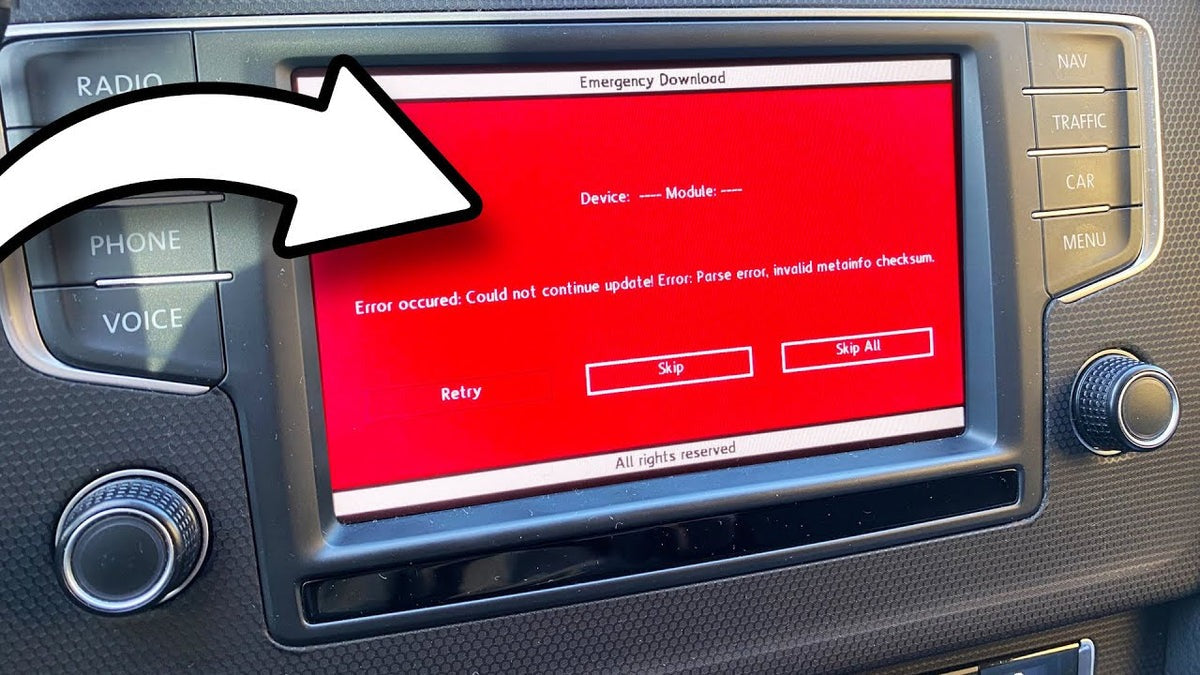
You get into your Volkswagen or SEAT, start the engine, and instead of the familiar infotainment interface, you’re greeted by a solid red screen. No navigation, no media, no settings—just red. This issue, commonly referred to as the “VW / SEAT Red Screen of Death”, is alarming but, in most cases, fully fixable.
At TheCarPlayer.com, we regularly encounter this problem—especially after software updates, firmware flashes, or Apple CarPlay activations. In this guide, we’ll explain what causes the red screen, which models are affected, what you can safely try yourself, and when professional intervention is the right choice.
What Is the VW / SEAT Red Screen Problem?
The red screen issue primarily affects MIB (Modular Infotainment Baukasten) systems used across the Volkswagen Group. Instead of booting into the normal UI, the system freezes on a red background, often displaying messages such as:
-
“Emergency Download”
-
“Software loading error”
Despite how serious it looks, this is not a screen hardware failure. The display itself is usually fine. The real issue is a software or storage crash that prevents the infotainment unit from booting correctly.
VW & SEAT Models Commonly Affected
The red screen is most frequently reported on vehicles equipped with MIB1 and MIB2 systems, typically produced between 2013 and 2020.
Common Volkswagen models:
-
Golf 7 (Mk7)
-
Passat B8
-
Tiguan
-
Polo
-
Touran
Common SEAT models:
-
Leon 5F
-
Ibiza
-
Ateca
-
Alhambra
If your vehicle uses Discover Media, Discover Pro, or equivalent SEAT systems, it may be affected.
Main Causes of the Red Screen
Understanding the root cause is critical before attempting any fix.
1. Low-Quality or Faulty SD Card
Cheap or unreliable SD cards are one of the most common triggers. During firmware updates or navigation data loading, poor cards can cause:
-
Incomplete file transfers
-
Corrupted system data
-
Boot failure leading to a red screen
2. SD Card Reader Issues
Even if the SD card itself is fine, the reader may not be.
-
Dust, oxidation, or worn contacts
-
Intermittent read errors
-
Incomplete updates
A single unreadable sector during an update can permanently crash the boot process.
3. Failing Internal eMMC Memory (Very Common on MIB2)
On 5–8-year-old MIB2 units, internal eMMC memory degradation is extremely common.
During an update:
-
A bad memory sector can block writing
-
Files become partially written or corrupted
-
The system gets stuck during boot → red screen
If the memory is healthy, updates complete normally. If not, failure is almost guaranteed.
4. Interrupted Software Update or CarPlay Activation
Even a split-second power interruption can be enough to brick the system:
-
Low vehicle battery
-
Door opened during update (power fluctuation)
-
Vehicle entering energy-saving mode
-
Pressing the HOME or power button
-
A 0.5-second drop in the 12V supply
One incomplete file is enough to trigger the red screen.

How to Fix the Red Screen on VW & SEAT
Before assuming the unit is dead, follow these steps in order.
Step 1: Forced Restart (Soft Reset)
This resolves temporary crashes and should always be tried first.
-
Turn on the ignition
-
Press and hold the power / volume button for 10–15 seconds
-
The screen should go black, then show the VW or SEAT logo
-
Release the button and allow the system to boot fully
If the system works normally afterward, the issue was temporary. If the red screen returns, continue.
Step 2: Remove External Media
Disconnect everything:
-
USB cables
-
Navigation SD card
-
CDs or DVDs
Perform another forced restart. If the system boots, one of the external devices or cards is the cause. Replace or reformat it before reconnecting.
Step 3: Reinstall the Firmware (Advanced)
⚠️ Warning: This step carries risk. If done incorrectly, it can worsen the problem. Proceed only if you are experienced.
Typical process:
-
Insert the correct firmware SD card (usually located in the glove box)
-
Access Update / Service Mode (key combinations vary by unit)
-
Start the firmware installation
-
Do not turn off the ignition under any circumstances
If the internal memory is damaged, firmware reinstallation may fail.
When to Contact a Professional
If resets and firmware reinstallation fail—or if you are unsure—professional help is the safest option.
Dealerships: Proceed With Caution
Many dealerships immediately recommend full head unit replacement, often costing thousands. This is frequently unnecessary and based on limited repair-level diagnostics rather than actual component failure.
You may also be charged for diagnostics only to be told the unit or SD reader must be replaced.
Independent MIB & Infotainment Specialists (Recommended)
Specialized automotive electronics technicians can often:
-
Repair corrupted firmware
-
Recover or replace failing eMMC memory
-
Fix improper CarPlay activations
-
Restore the original system without replacing the unit
This approach is far more cost-effective and usually restores full functionality.
CarPlay Activations and Safe Upgrades
At TheCarPlayer.com, we strongly emphasize safe, tested CarPlay retrofit solutions designed specifically for VW & SEAT MIB systems.
Many red screen cases are caused by:
-
Improper coding
-
Unverified activation methods
-
Incompatible firmware
Using vehicle-specific CarPlay modules and correct installation procedures dramatically reduces risk.
Conclusion: The Red Screen Is Rarely the End
A red infotainment screen on your Volkswagen or SEAT is frustrating—but rarely fatal. In most cases, it’s a recoverable software or memory issue, not a dead display.
With the right diagnosis and approach, your system can be restored—often without replacing the head unit.
For reliable CarPlay upgrades, troubleshooting guides, and model-specific solutions, stay with TheCarPlayer.com.
Share:
Google Quietly Working on a New Android Auto Eye-Candy Feature
How to Install Apple CarPlay in a Ford Explorer (2011–2016) with SYNC 2
1 comment
My 2015 Seat Leon MIB2 Standard, was mid way through installing CarPlay from mib helper and it went to red screen saying emergency download and no suitable download found. Do you have any SD Card that plug in and solve this issue